Translate the game
Every text the game shows is ready to translate, but only English ships. You add French: you gather the texts, translate one of them, compile, and pick the language in the options.
Where the texts are
| Source | Where | What it holds |
|---|---|---|
ST_Menus |
Content/ZombieSurvival/Localization/ |
the texts of the menus and screens (MainMenu.NewGame reads New Game, Creation.Male reads Manny) |
ST_HUD |
same folder | the texts of the HUD and the windows (Vehicle.Sedan, units such as Units.Celsius = {0} °C) |
ST_Messages |
same folder | messages and replies (Chat.HostOnly reads Only the host can do that.) |
| Data Asset text fields | every DA_* under Content/ZombieSurvival/DataAssets/ |
item names and descriptions, occupations, traits, and the other Text fields |
Keys are Domain.Name, in English.
The project has one localisation target, Game. It gathers Content/ZombieSurvival, and its native
culture is English (en). Its settings are Config/Localization/Game_Gather.ini and
Config/Localization/Game_Compile.ini. Its output is Content/Localization/Game/, a folder the first
gather creates: the template ships without it.
Steps
1. Add the culture
- Tools > Localization Dashboard.
- Select the target Game.
- Under Languages, at the bottom of the target's settings, open Add New Language and pick French. Type its name in the search field to find it.
2. Gather the texts
Under Languages, press Gather Text. A window follows the gather and offers OK when it is done. The gather finds 10,166 words.
Always gather before you export: a new text of yours is only in the manifest once gathered.
3. Export, translate, import
- Press Export Text. It asks for a folder: keep
Content/Localization/Game. It writes a.pofile per culture,fr/Game.pofor French. - Open the French file in any PO editor, or as plain text. A dedicated PO editor has not been tried.
- Find the entry whose source is
New Game(keyMainMenu.NewGame) and writeNouvelle partieas its translation. Translate as many others as you like. - Save the file and press Import Text in the dashboard, with the same folder.
4. Compile
Press Compile Text. The game reads compiled texts only, here fr/Game.locres. The French row of
the dashboard now counts the words you translated.

5. Pick the language in the options
Play this step in a standalone game. Play In Editor does not show the game's translations: the texts stay in English whatever the option says. It also keeps its own profile, apart from the standalone game's.
- Open
Content/ZombieSurvival/Maps/L_Boot, then Play menu > Standalone Game. - OPTIONS, page INTERFACE. The Language row lists every compiled culture. Pick French and APPLY.
- Back on the main menu, the new game button shows your translation in the menu's style: NOUVELLE PARTIE.
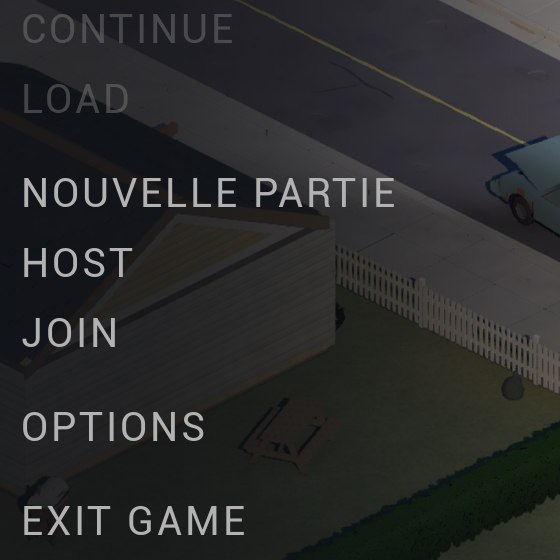
The choice is kept in the player's local profile. Nothing follows a player from one PC to another.
6. Check without changing your profile
Start the game with -culture=fr on the command line: a culture given there wins over the profile's.
In the editor, a standalone game takes extra arguments from the play settings (Additional Launch
Parameters). This step has not been played as written.
7. Find what does not translate
Start a development build with -culture=LEET. This pseudo-language deforms every translatable text,
so a text that stays plain English is one that will not translate. Walk the menus, open the windows
and note each plain text. LEET is not available in a Shipping build.
Numbers, keys and the names players type are not translated, so they stay plain. The date of the LOAD screen follows the culture's format.
8. Ship it
In Edit > Project Settings > Packaging, add the culture to the localisations to package. Packaging has requirements of its own. This step has not been played as written.
If it does not work
- The Language row offers only English: the culture was not compiled (step 4).
- The text stays in English: you are in Play In Editor, so use a standalone game. Otherwise the entry has no translation, the PO file was not imported, or the texts were not compiled after the import.
- A text never appears in the PO file: it was not gathered, so gather again (step 2). A text marked culture invariant is never gathered.
- A text stays plain in
LEET: it is assembled or typed outside the tables. Move it into a table (below). - The build has the English texts only: the culture is not in the localisations to package.
- Squares instead of letters: the interface font has no characters for that script. Give the interface another typeface.
Adding texts of your own
Put every new displayed text in one of the three tables, or in a Text field of a Data Asset, under a
key Domain.Name in English like the shipped ones. A literal typed in a graph or a widget is a text a
translator will not find. Gather, translate and compile again after you add texts.
Some messages are assembled from pieces in the graphs, for example Picked up: followed by the
item's name. They keep the English word order. For a language that needs another order, turn that
message into one table entry with a {0} argument, as Units.Celsius ({0} °C) does, and build it
with Format Text.